Dev Log #1: Building My First Clicker Game with Godot
The Beginning: Moving from Phaser JS to Godot
After an unsuccessful attempt to create a clicker game using Phaser JS and vanilla JavaScript (I have used Unity in the past), I decided to switch to Godot Engine. The installation process was super easy, and I was quickly able to dive into development.
Getting Started with Godot
One of my first tasks was setting up basic functionality:
- Click Events and Scene Switching: I created simple functions to handle on-click events and transitions between scenes.
- Placeholder Assets: I added placeholder textures and sounds to get a rough version of the game running.
To learn the ropes of Godot, I watched some helpful tutorials:
These resources provided great insight into Godot’s structure and capabilities, especially the node-based system.
Creating Assets with Aseprite
I bought Aseprite, and it’s probably the best software I’ve ever purchased. It’s also the only software I’ve ever purchased! I had a blast creating:
- My First Animations: Working on the main character’s animations (idle and shooting) was incredibly rewarding.
- Tilemaps and Tilesets: I made and polished two full tilesets, iterating and reworking each multiple times due to my perfectionism.
Making the Game Playable
Once the game reached a somewhat playable state, I focused on adding:
- Custom Fonts: I integrated a pixel-style Google Font to match the game’s aesthetic.
- Sound Effects: I used free sound assets, though unfortunately, I’ve lost track of their sources.
Compiling for Android
Compiling the game for Android was a challenge, but this amazing tutorial made the process much smoother. Following the guide, I successfully prepared the game for the Google Play Store.
Using Git with Godot
For the first time, I used Git to manage a game project. Godot makes this seamless by:
- Automatically setting up a
.gitignorefile tailored for Godot projects. - Keeping file sizes small, making version control quick and efficient.
Coding with GDScript
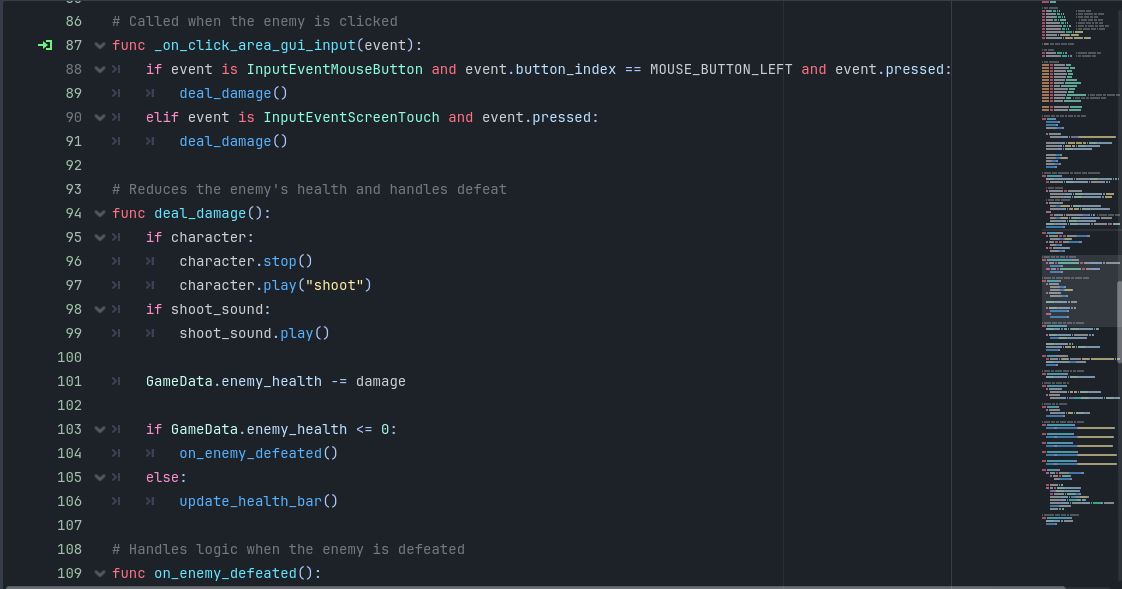
This was my first experience with GDScript (and Python-like syntax). Coming from Java, PHP, C#, and JavaScript backgrounds, I found it very intuitive. I also used ChatGPT to assist with some boilerplate code. However, there were some issues:
- Broken Code Suggestions: Occasionally, the generated code wouldn’t work as expected.
- Formatting Issues: GDScript requires precise indentation, which sometimes didn’t translate properly when copying code.
Ultimately, I realized it was faster and more efficient to write most of the code myself. The AI also struggled to interact with Godot’s GUI elements and signals effectively.
Performance Challenges
One issue I encountered was lag in the Godot editor GUI. Typing or performing certain actions would sometimes slow down significantly. I suspect this is due to my laptop’s poor specs rather than a problem with Godot itself.
Reflections
This first dev log marks the beginning of my journey into game development with Godot. Despite some challenges, I’ve made significant progress and learned a lot along the way. From understanding the basics of Godot to creating assets and preparing the game for release, it’s been an incredibly rewarding experience.
Stay tuned for more updates in future dev logs!